
A brand or agency has invited you to work with them on an influencer marketing or UGC campaign through SuperProfile. When you accept, their campaign manager can run DM automations, schedule posts and see performance, but only on the Instagram account and Facebook Page you choose to share.
It takes about 2 minutes. Here's how.
Managing the campaign, not joining it? See How to invite creators to your influencer marketing or UGC campaign.
Step 1: Open the invitation email
You'll get an email from SuperProfile with a subject like:
[Manager name] invited you to work with [Brand] on SuperProfile
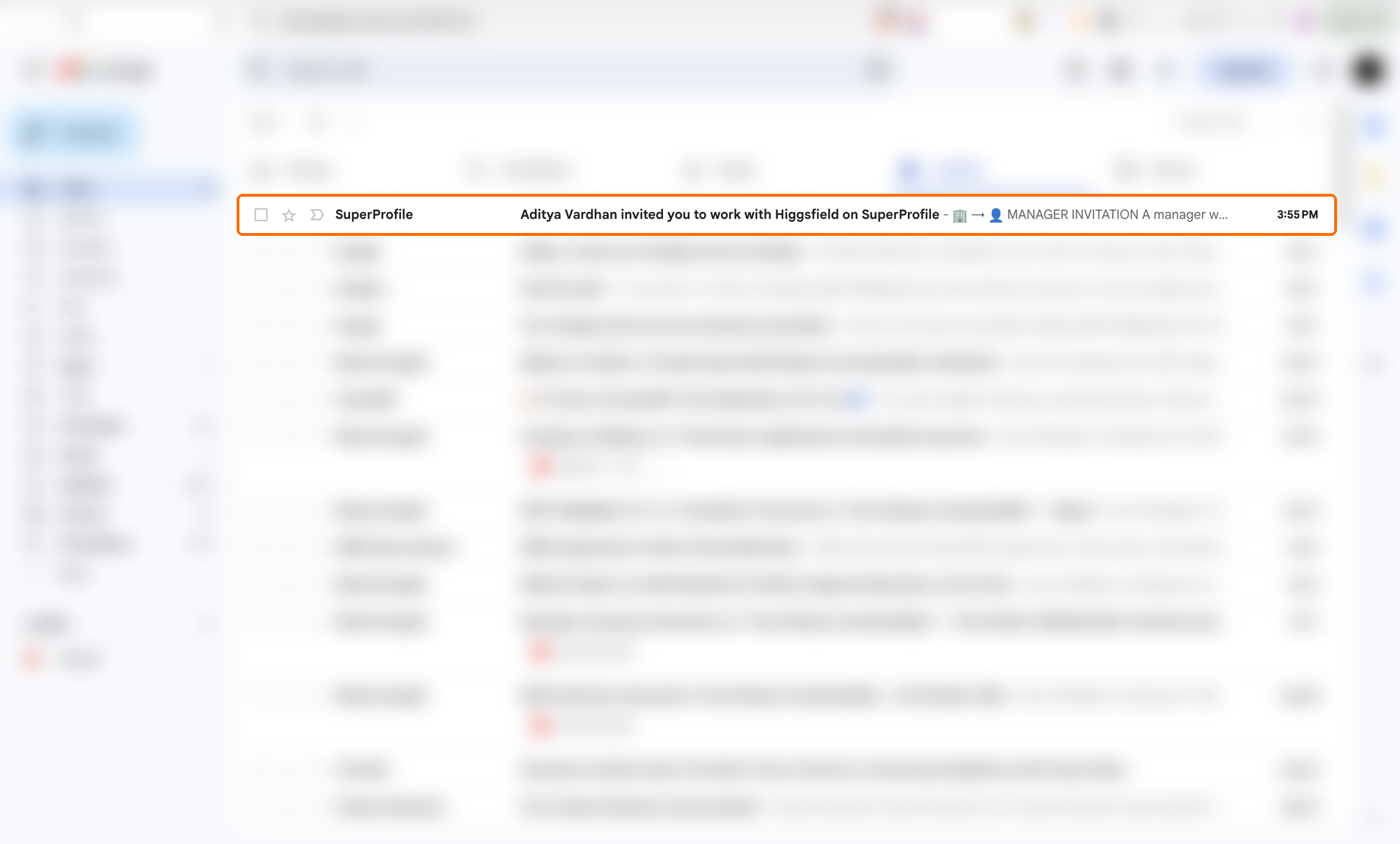
Can't find it? Check your Updates, Promotions and Spam folders, or search your inbox for "SuperProfile".
Step 2: Click Authorise
Open the email. It's from SuperProfile <hello@superprofile.bio>, with the heading "A manager wants to manage your account". It shows who is inviting you, what they'll be able to do and what they won't.
If you recognise the manager, click Authorise.
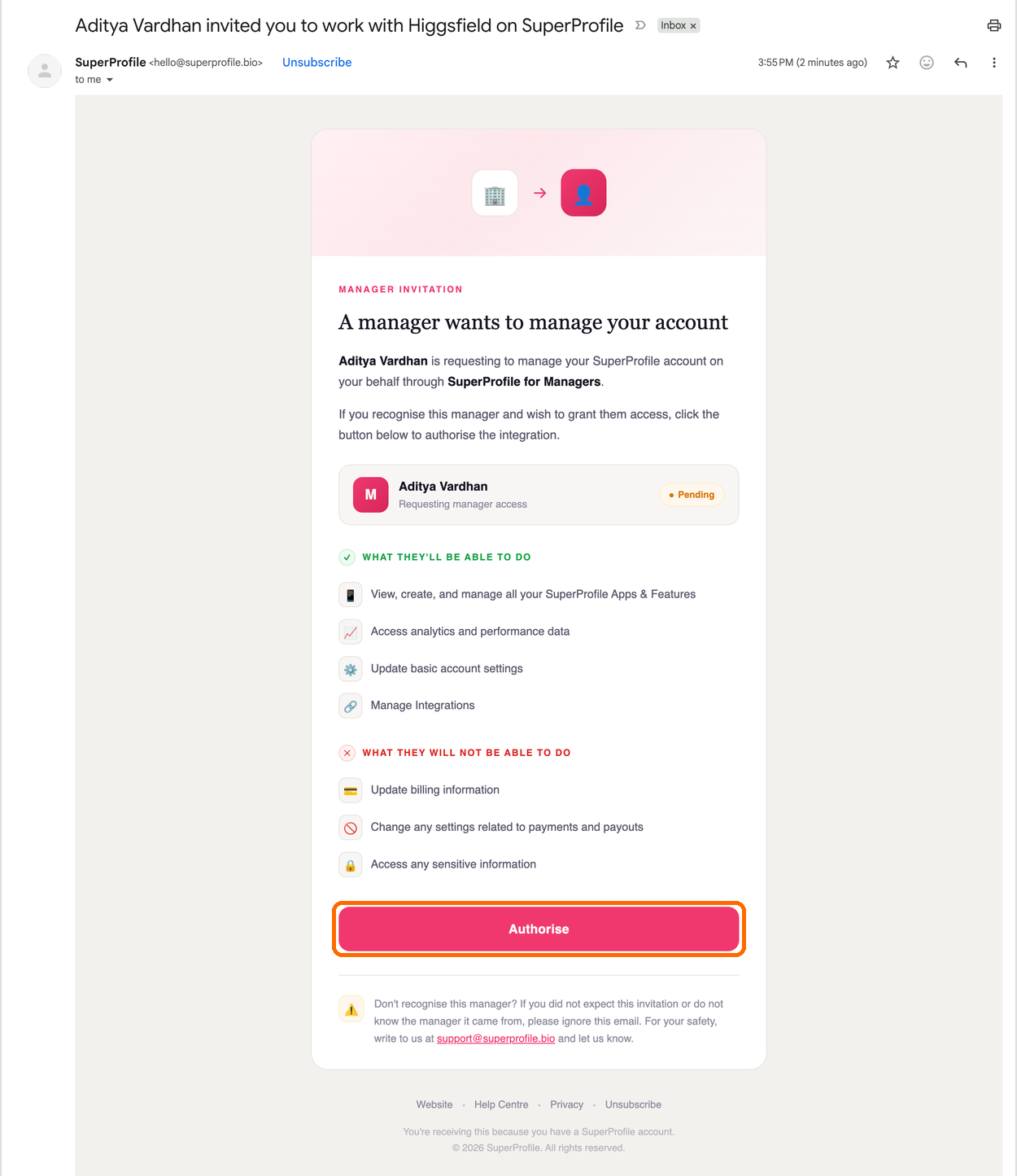
Don't recognise the manager? Don't click Authorise. Ignore the email and let us know at support@superprofile.bio.
Step 3: Check what the manager can and can't do
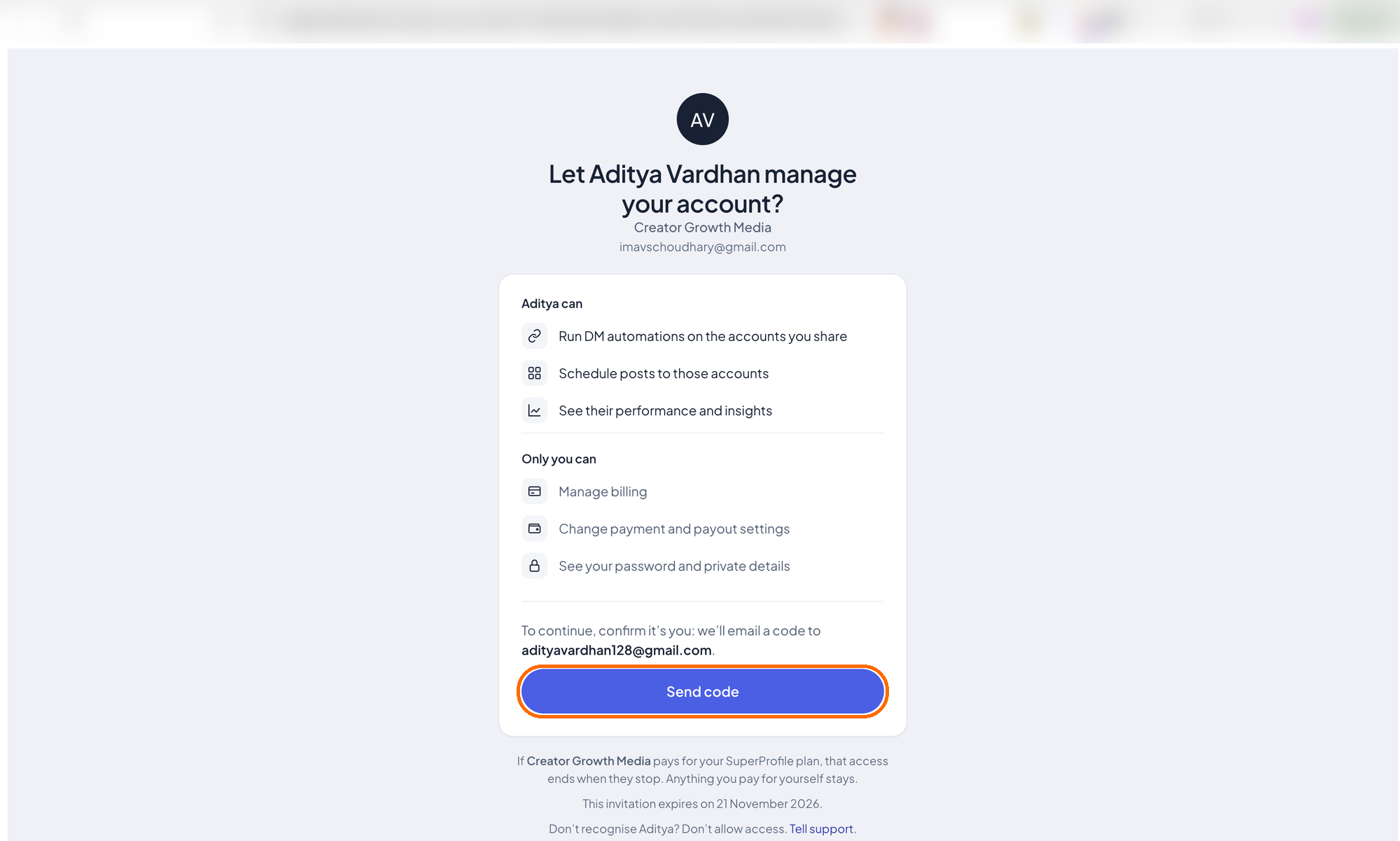
A page opens asking "Let [Manager name] manage your account?" It shows the manager's name, their agency and their email.
The manager can:
- run DM automations on the accounts you share
- schedule posts to those accounts
- see their performance and insights
Only you can:
- manage billing
- change payment and payout settings
- see your password and private details
The bottom of the page shows the date your invitation expires.
Step 4: Verify your email
To keep your account safe, confirm that the invited email is yours.
- Click Send code. The page shows which email the code goes to.
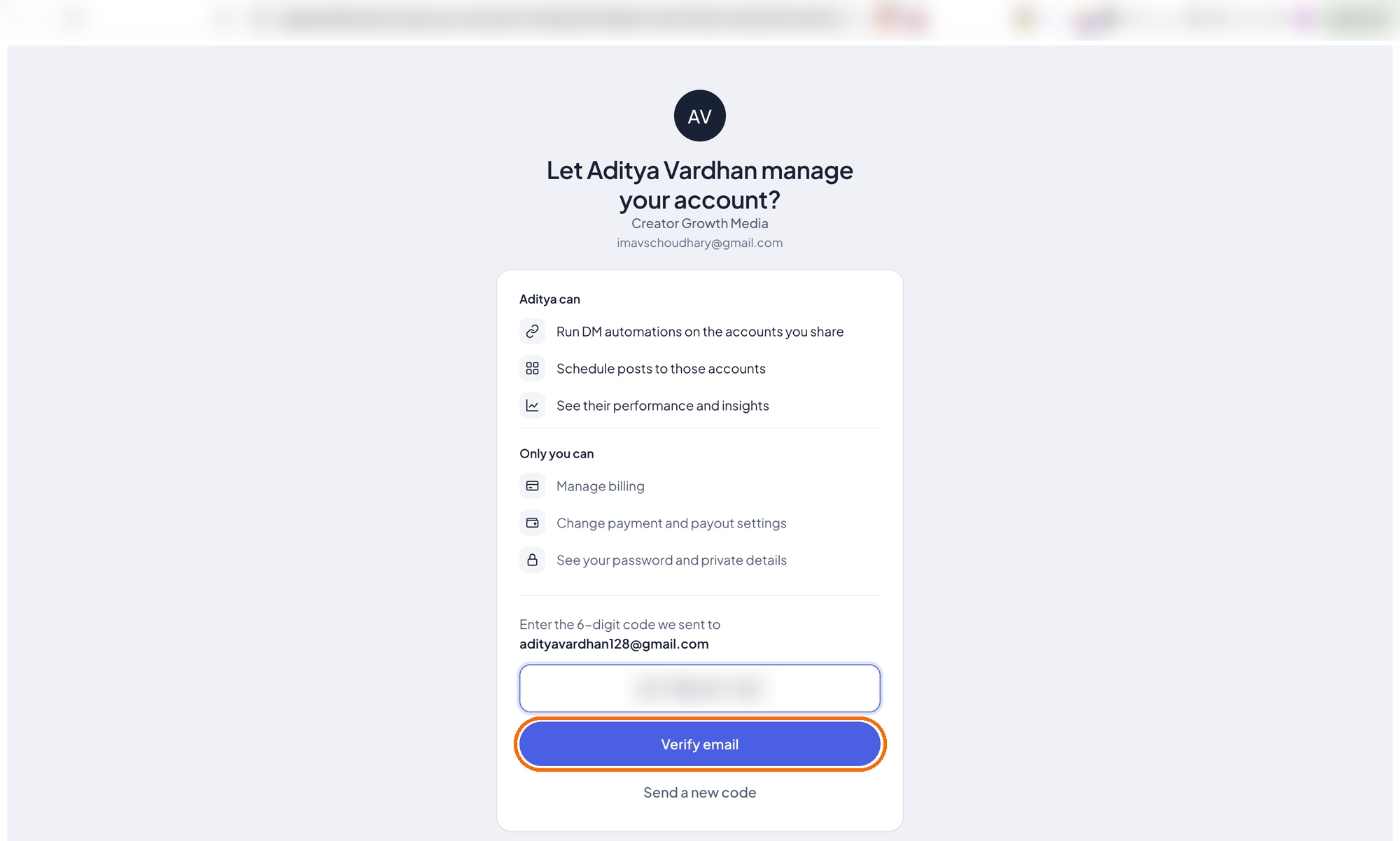
- Check your email for the 6-digit code and type it in.
- Click Verify email. If the code doesn't arrive, click Send a new code.
New to SuperProfile? No problem. Verifying your email creates your account automatically.
Signed in with a different account? You have to verify with the same email the invite was sent to. A forwarded invite won't work for anyone else.
Step 5: Allow access
Click Allow access.
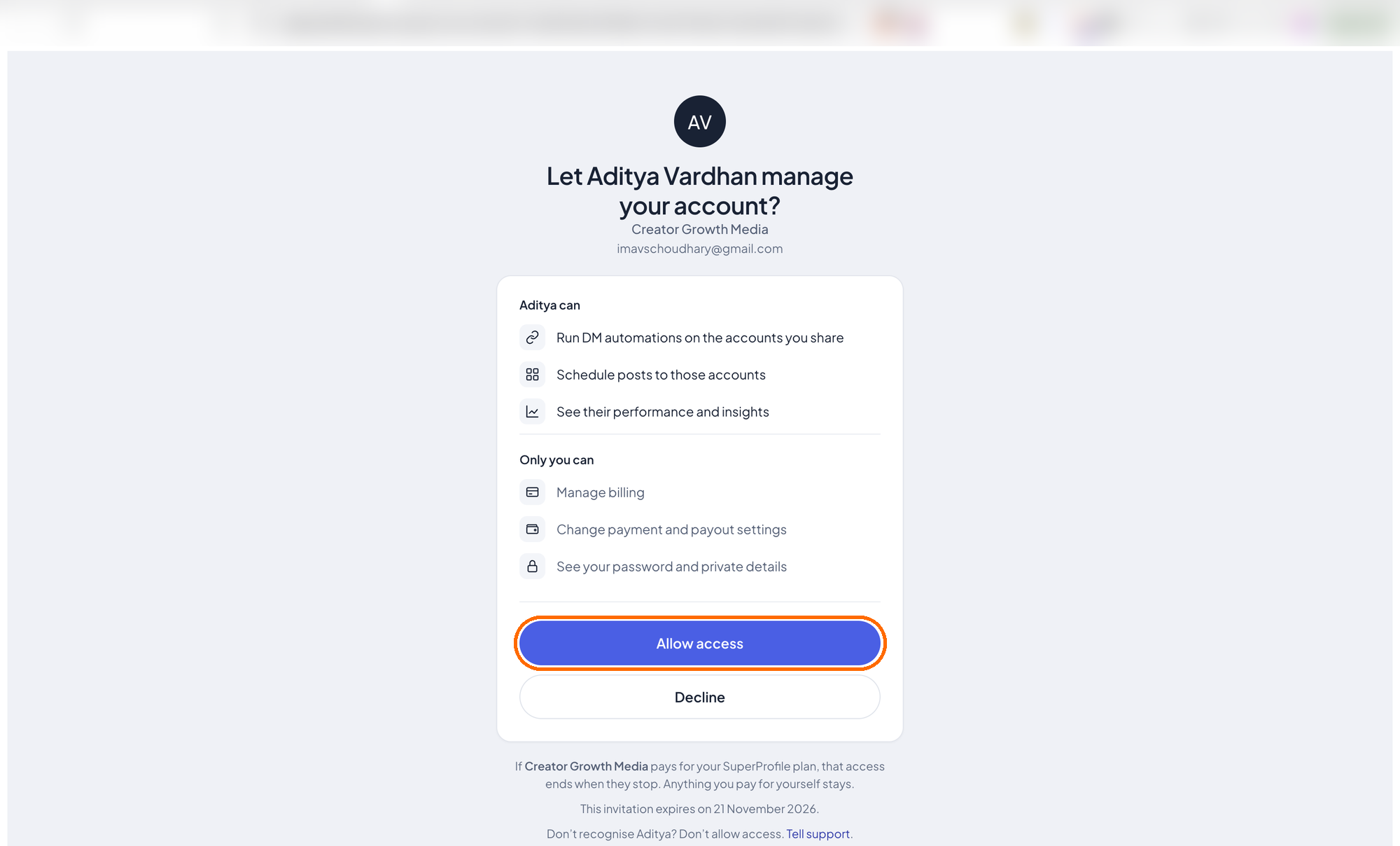
If you don't want to join, click Decline. Nothing changes on your account. If you don't recognise the manager, use Tell support at the bottom of the page.
Step 6: Choose which accounts to share
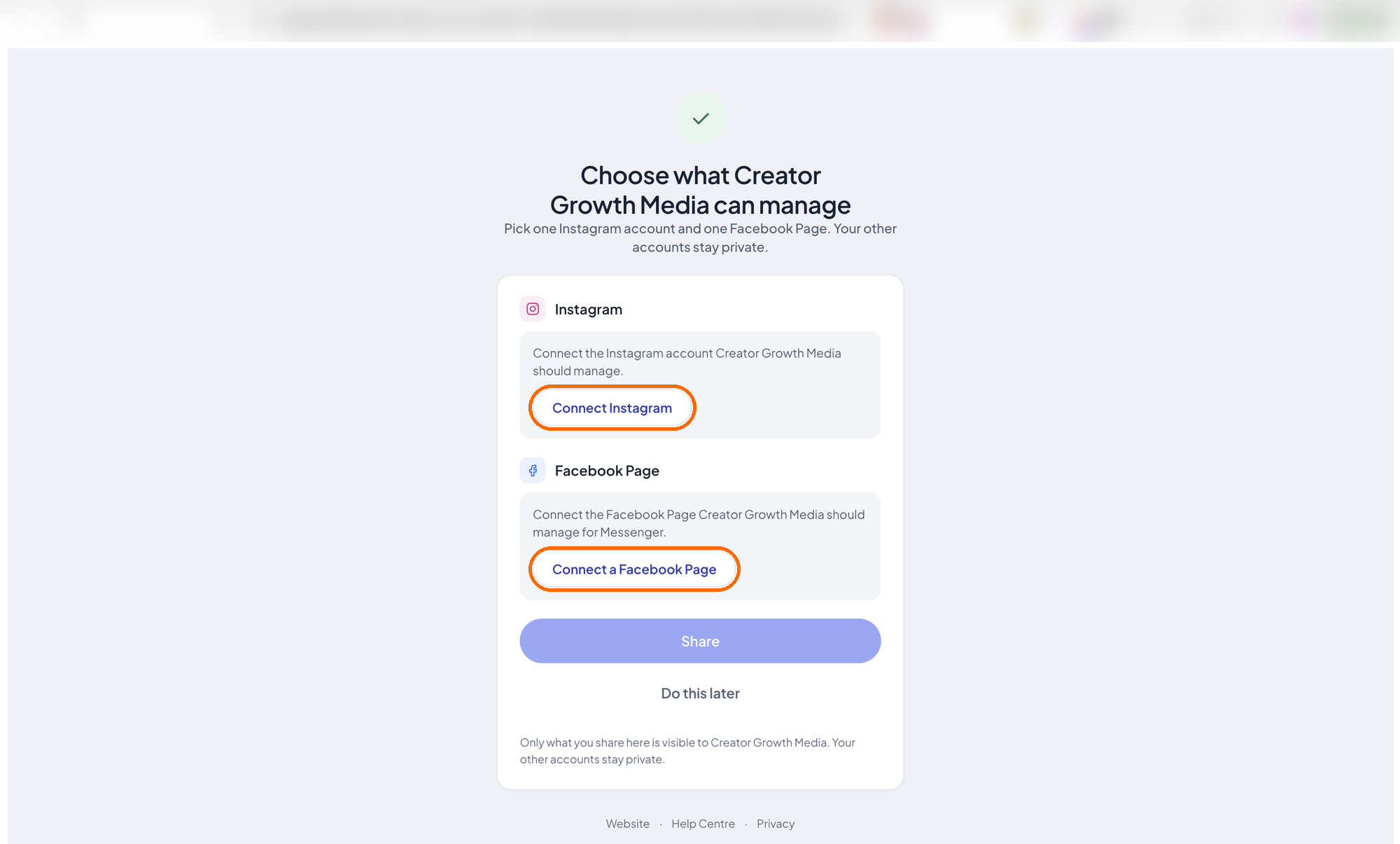
You'll see "Choose what [Agency] can manage". Pick:
- one Instagram account, and
- one Facebook Page (used for Messenger).
Only what you share is visible to the agency. Your other accounts stay private.
Connect your Instagram account
- Click Connect Instagram.
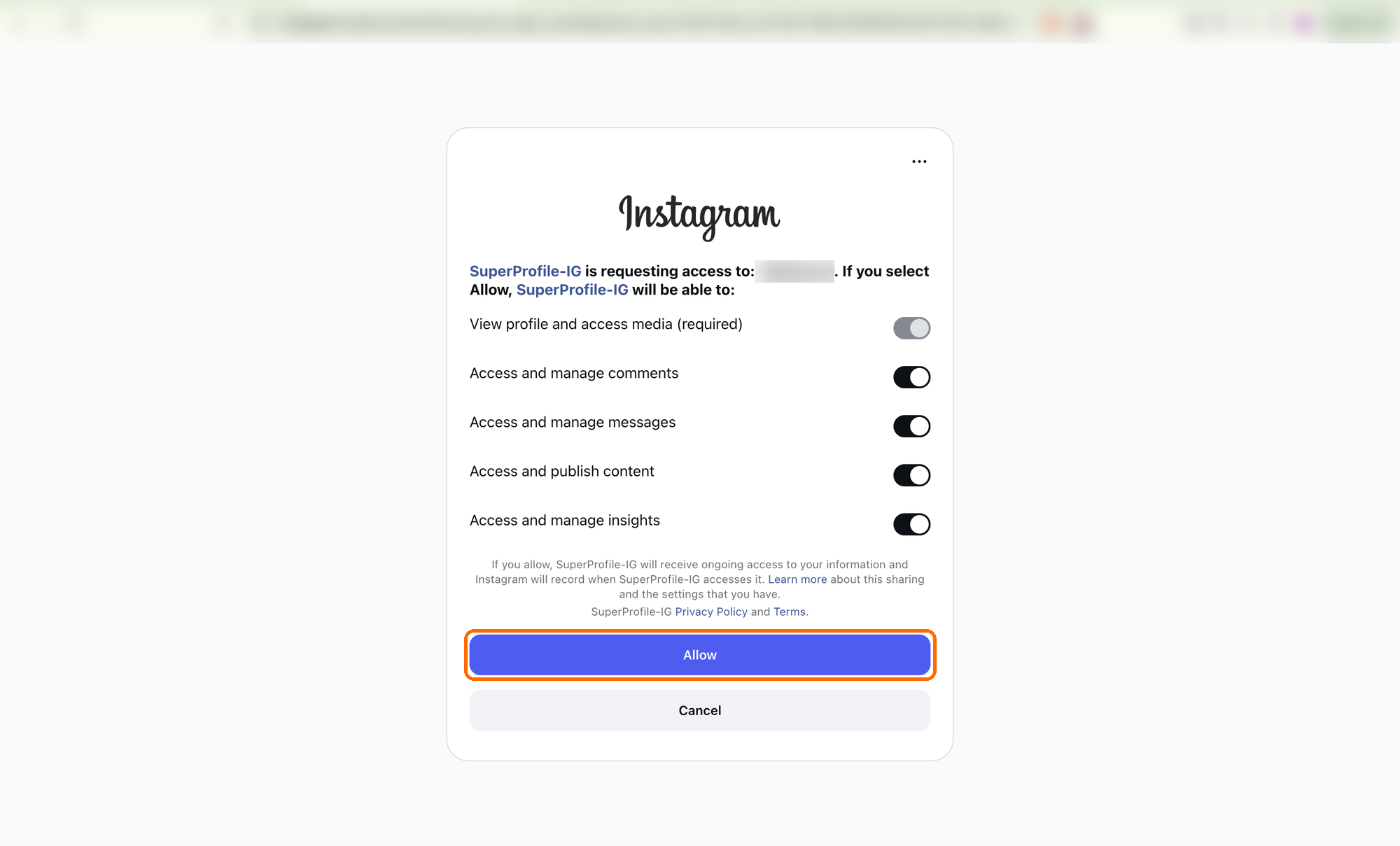
- Instagram opens. Log in if asked. Instagram then shows what SuperProfile-IG is requesting access to.
- Leave all the switches on (comments, messages, publishing and insights). The campaign's DM automations, post scheduling and performance tracking need them.
- Click Allow. You're brought back to SuperProfile.
Share it
Back on SuperProfile, you'll see "@yourhandle is connected. Share it below." If you have more than one Instagram account, use the dropdown to pick the one for this campaign.
Click the share button. Its label shows what you're sharing: Share Instagram, Share Page, or Share both.
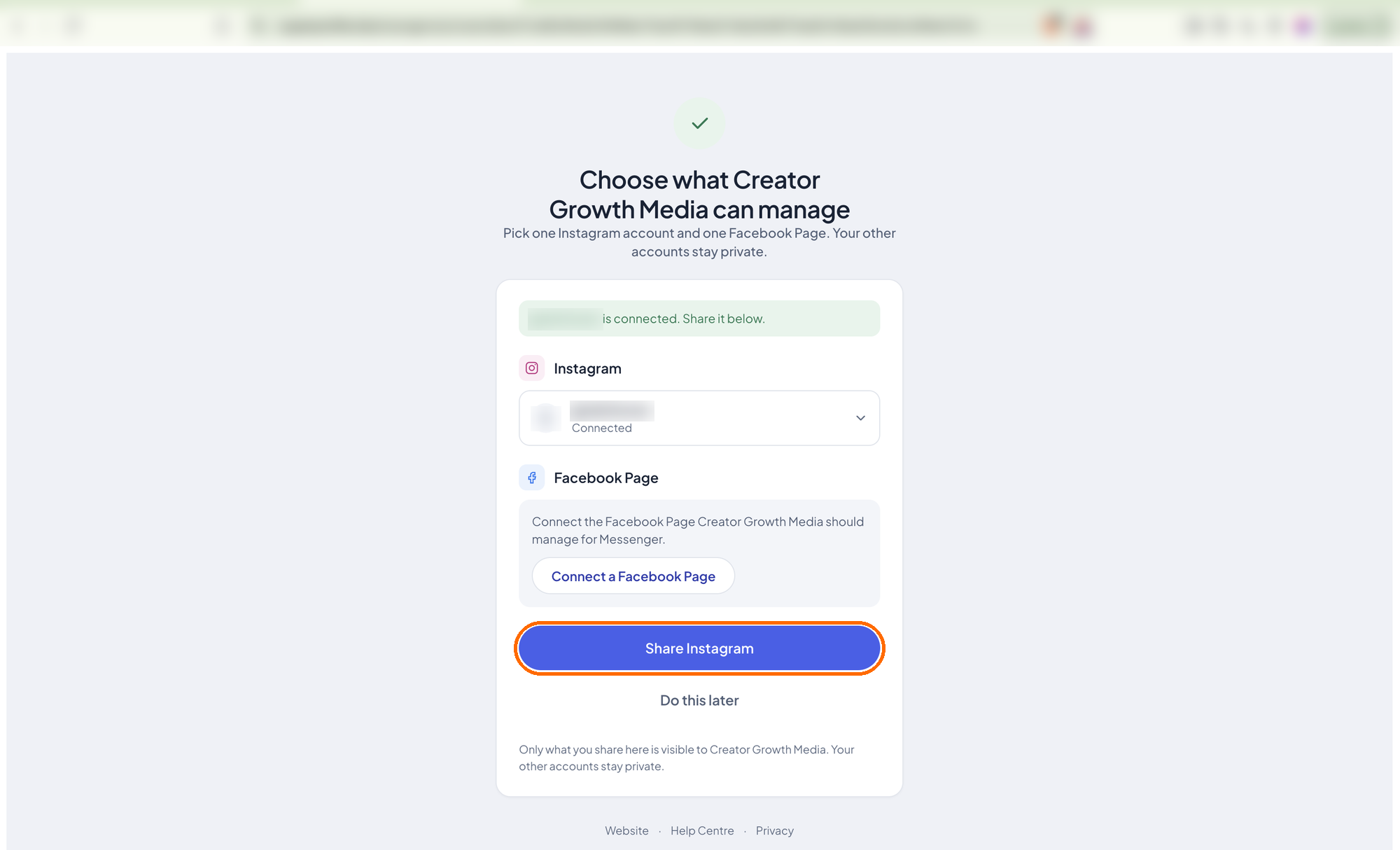
The campaign uses a Facebook Page for Messenger? Click Connect a Facebook Page before sharing, and pick your Page.
Not ready yet? Click Do this later. The manager can't start any work until you share an account. You can share any time from Account settings → Team.
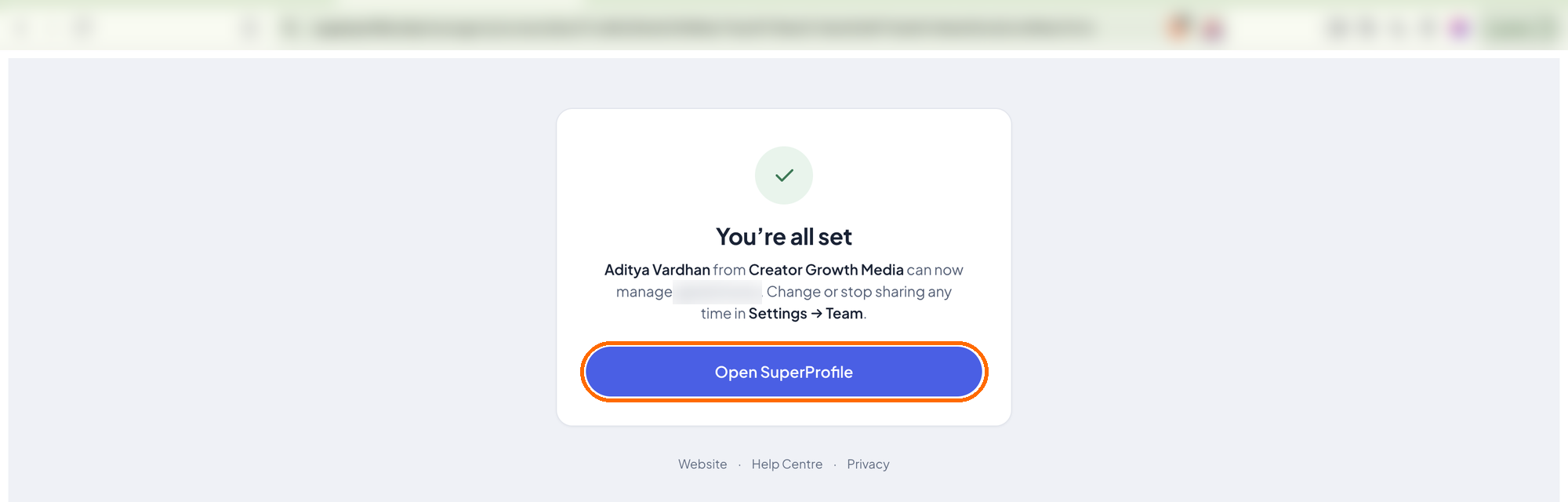
Step 7: You're all set
You'll see "You're all set", confirming which manager and agency can now manage the account you shared. Click Open SuperProfile.
New to SuperProfile? Finish your setup
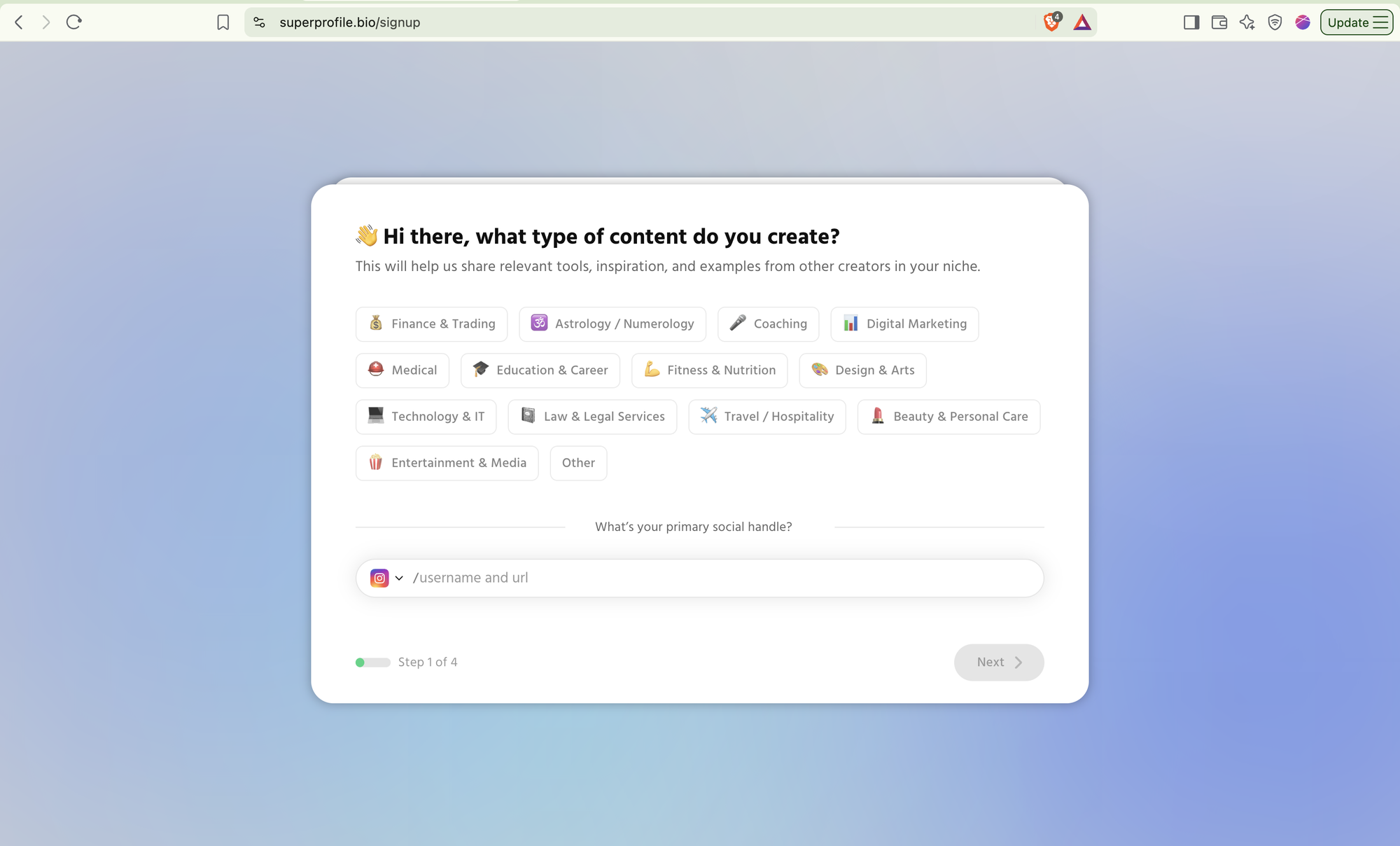
If your account was just created, Open SuperProfile takes you to a short setup. Your campaign access is already active; this just completes your own profile.
- Your content type: pick the type of content you create, add your main social handle, and click Next.
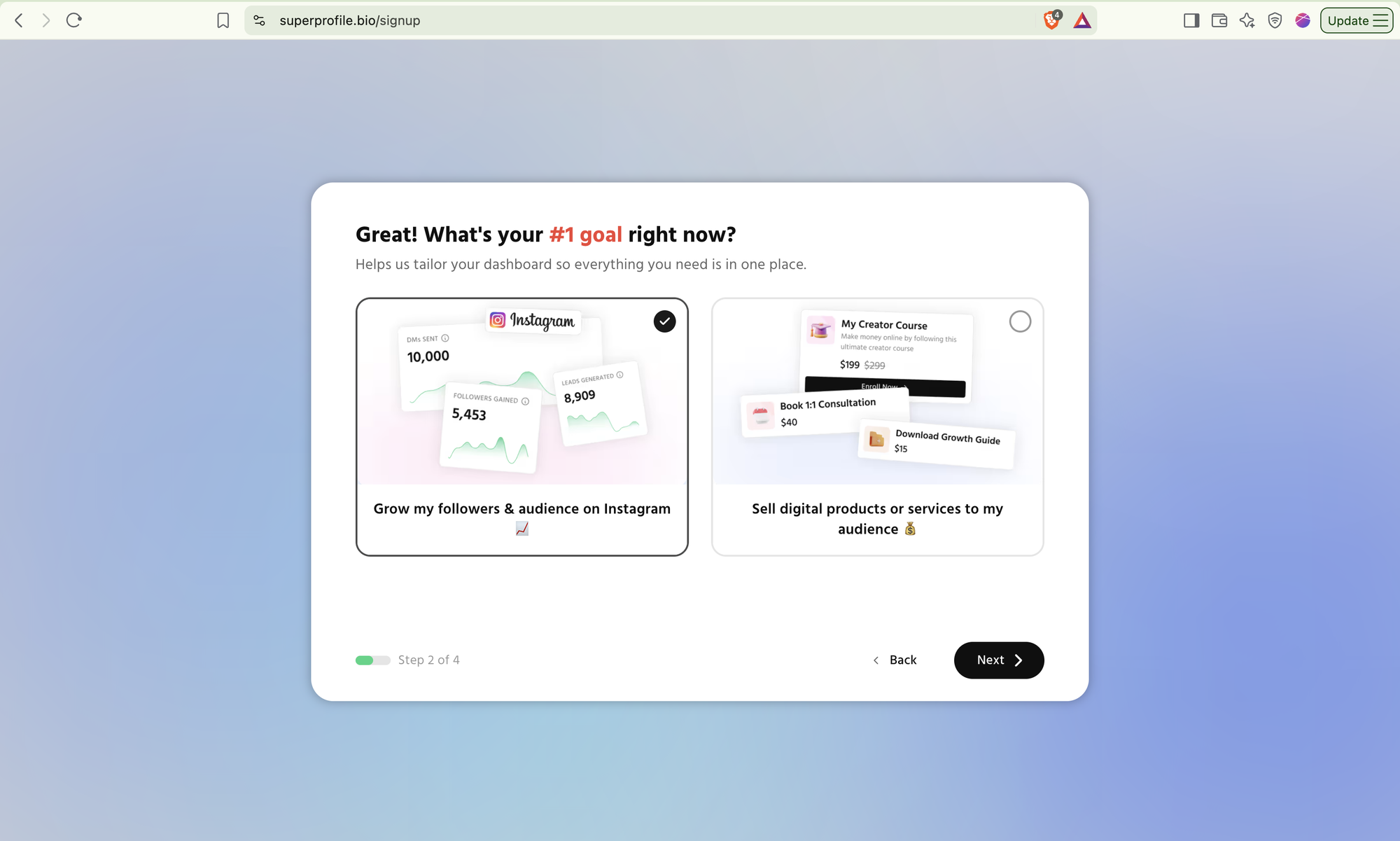
- Your #1 goal: choose Grow my followers & audience on Instagram or Sell digital products or services to my audience, then click Next.
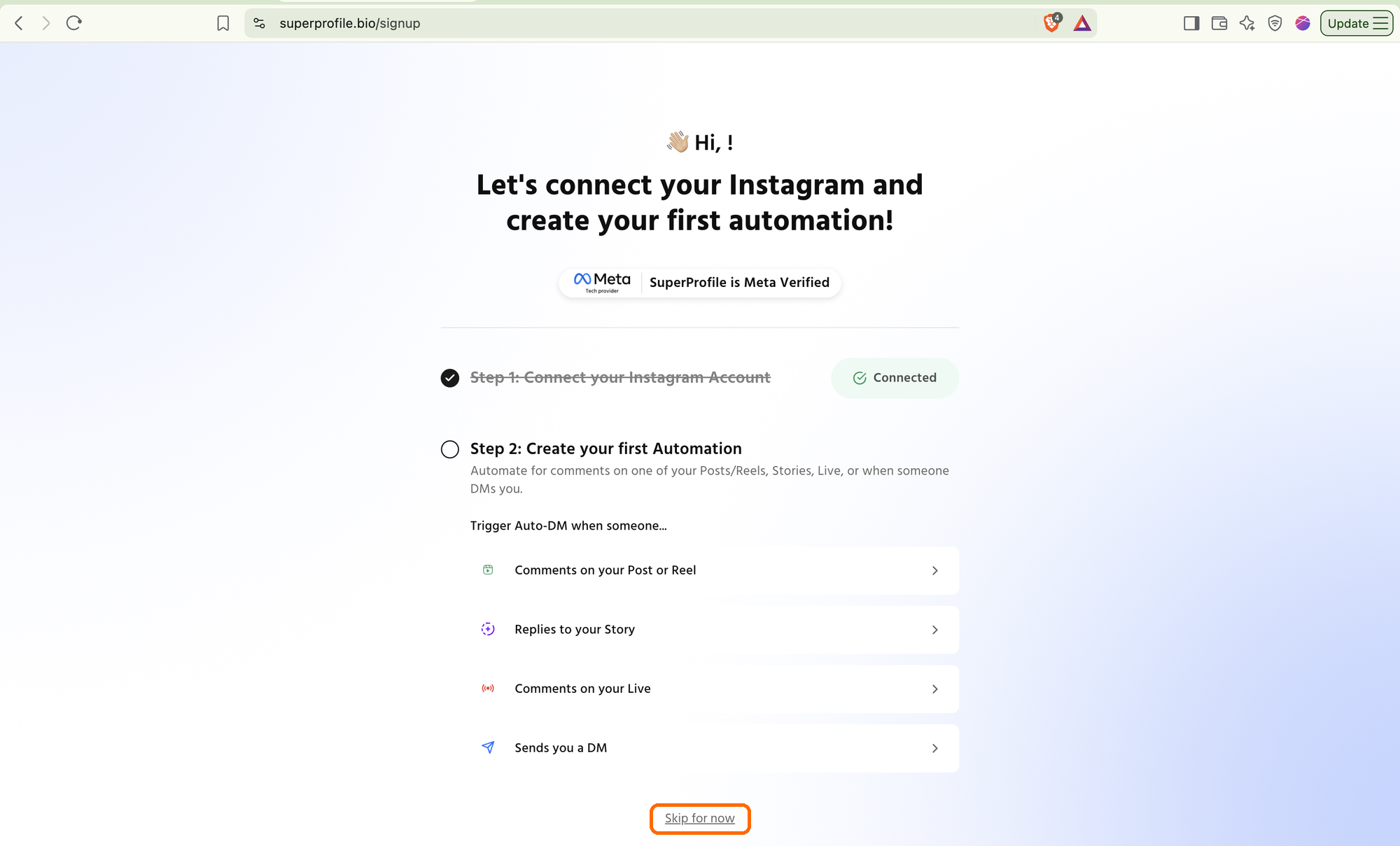
- Create your first automation: your Instagram already shows Connected. You don't need to create an automation here. Your campaign manager sets them up for you. Click Skip for now.
Your plan is covered by the agency
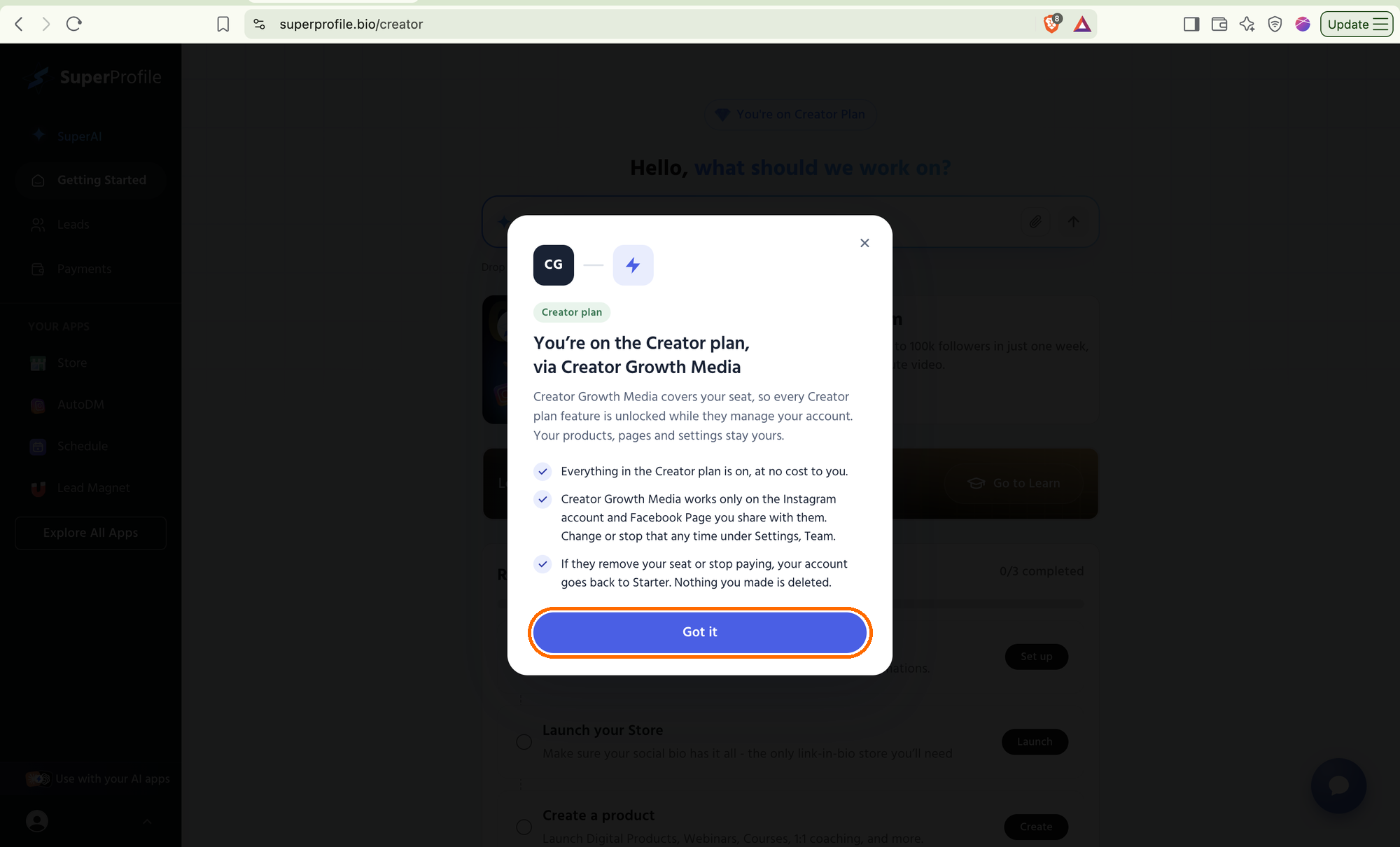
On your dashboard, you'll see "You're on the Creator plan, via [Agency]". Because the agency covers your seat:
- everything in the Creator plan is on, at no cost to you,
- the agency works only on the Instagram account and Facebook Page you shared, and
- if they remove your seat or stop paying, your account goes back to the free Starter plan. Nothing you made is deleted.
Your products, pages and settings stay yours. Click Got it.
Change or stop sharing at any time
- Click your profile at the bottom left of your dashboard and choose Account settings.
- Open the Team tab.
You'll see the agency, Managing since, and What they can manage.
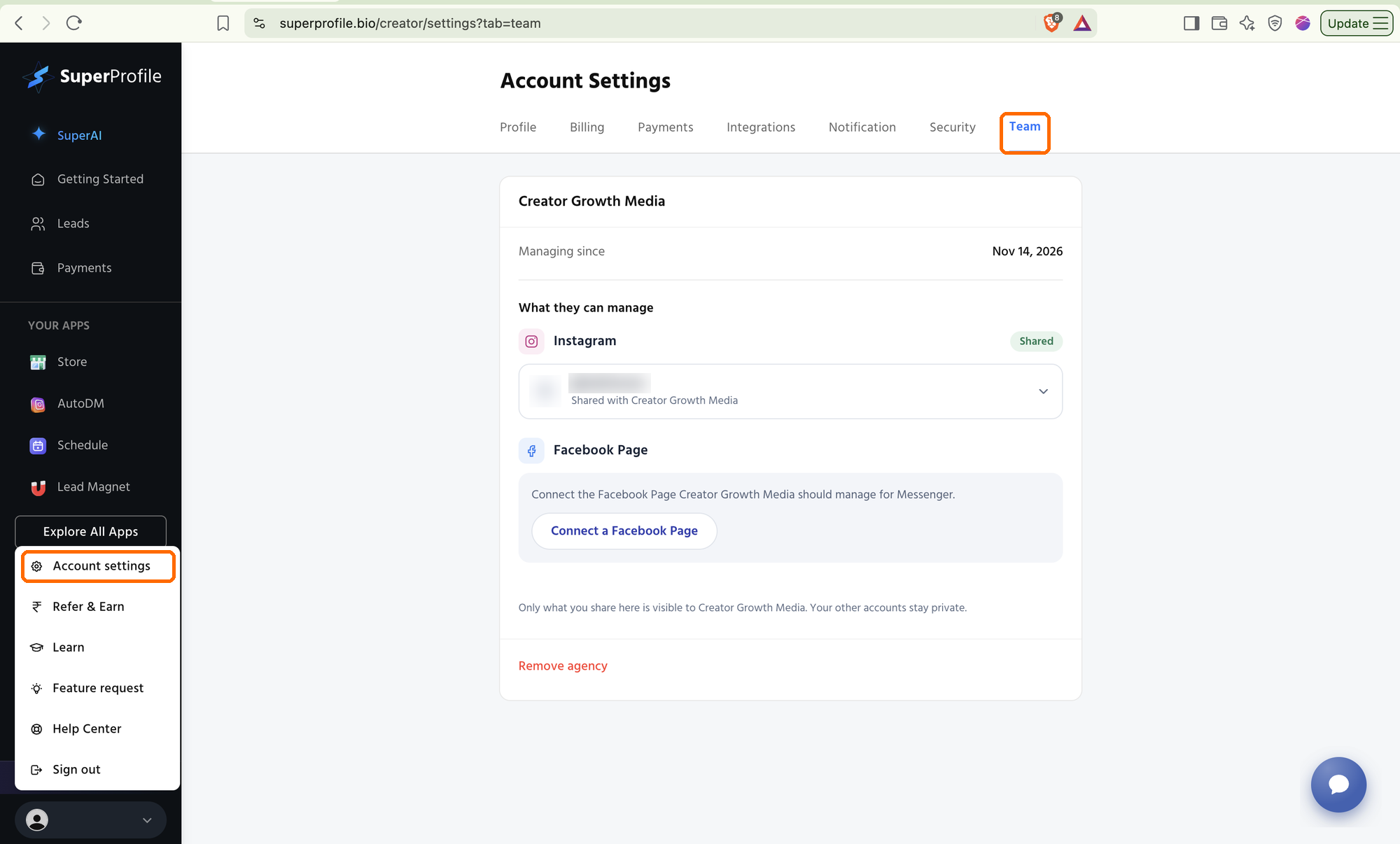
From here you can:
- switch accounts: pick a different Instagram account from the dropdown,
- add a Facebook Page: click Connect a Facebook Page,
- stop sharing an account (you stay linked and can share again later), or
- leave the campaign: click Remove agency.
Troubleshooting
| Message | What it means | What to do |
|---|---|---|
| This invite isn't valid | The link is broken, expired or already used | Ask the campaign manager to send a new invite |
| Expired | Invitations last 7 days | Ask the campaign manager to resend it |
| Cancelled | The agency cancelled the invitation | Contact the campaign manager |
| Accepted | You've already accepted | Click Open SuperProfile. You're already connected |
| "This invitation was sent to a different email" | You verified with another email | Verify with the email the invite was sent to |
| "That code didn't match" | Wrong or expired code | Click Send a new code and try again |
| Item shows Needs reconnecting in Account settings → Team | Your Instagram connection has expired | Click Reconnect and log in to Instagram again |