
Running an influencer marketing or UGC campaign with a group of creators? Invite them to a project in SuperProfile for Managers. Once a creator accepts, you can run DM automations, schedule posts and track performance on the Instagram account and Facebook Page they share with you, all from one place.
This article is for campaign managers. If you're a creator who received an invitation, see How to accept an invitation to an influencer marketing or UGC campaign.
Before you start
- You need a SuperProfile for Managers account. Log in at https://manager.superprofile.bio/login.
- Each creator you invite uses one seat. Seats and invites are managed for your whole agency in Agency settings. If you have no free seats, add some there first.
- Have every creator's email address ready. Use the email they use, or will use, for SuperProfile.
Tip: Use one project per campaign or brand. Set a brand name in Project settings, and the invitation email will say "[Your name] invited you to work with [Brand] on SuperProfile", so creators know straight away what it's for.
Step 1: Open your campaign's project
- Go to https://manager.superprofile.bio/login and sign in.
- Use the Project switcher at the top left to open the project for your campaign.
Step 2: Open the invite window
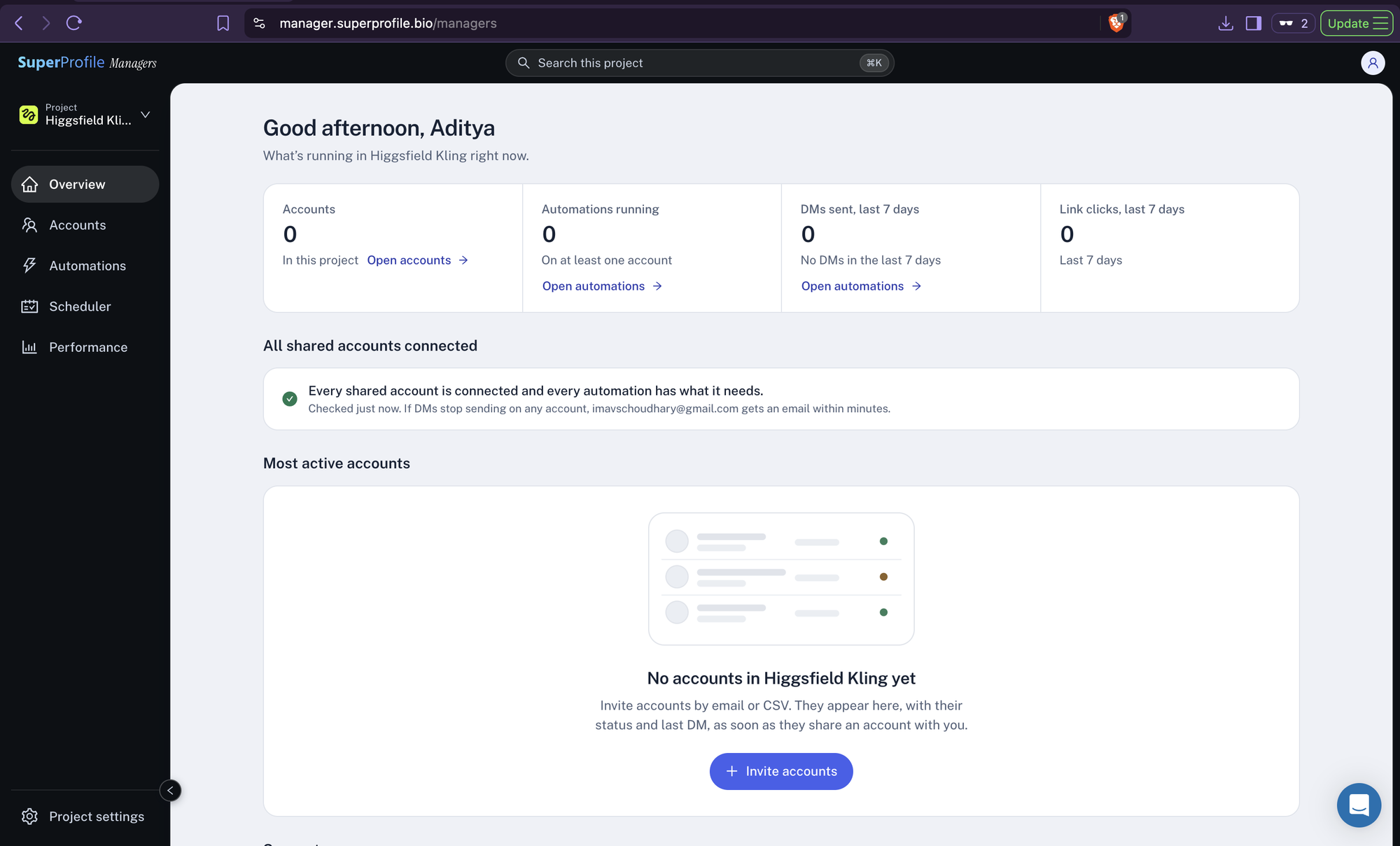
On the project's Overview page, click Invite accounts.
If the project already has creators, go to Accounts in the left menu and click Add accounts at the top right.
Step 3: Add your creators' emails
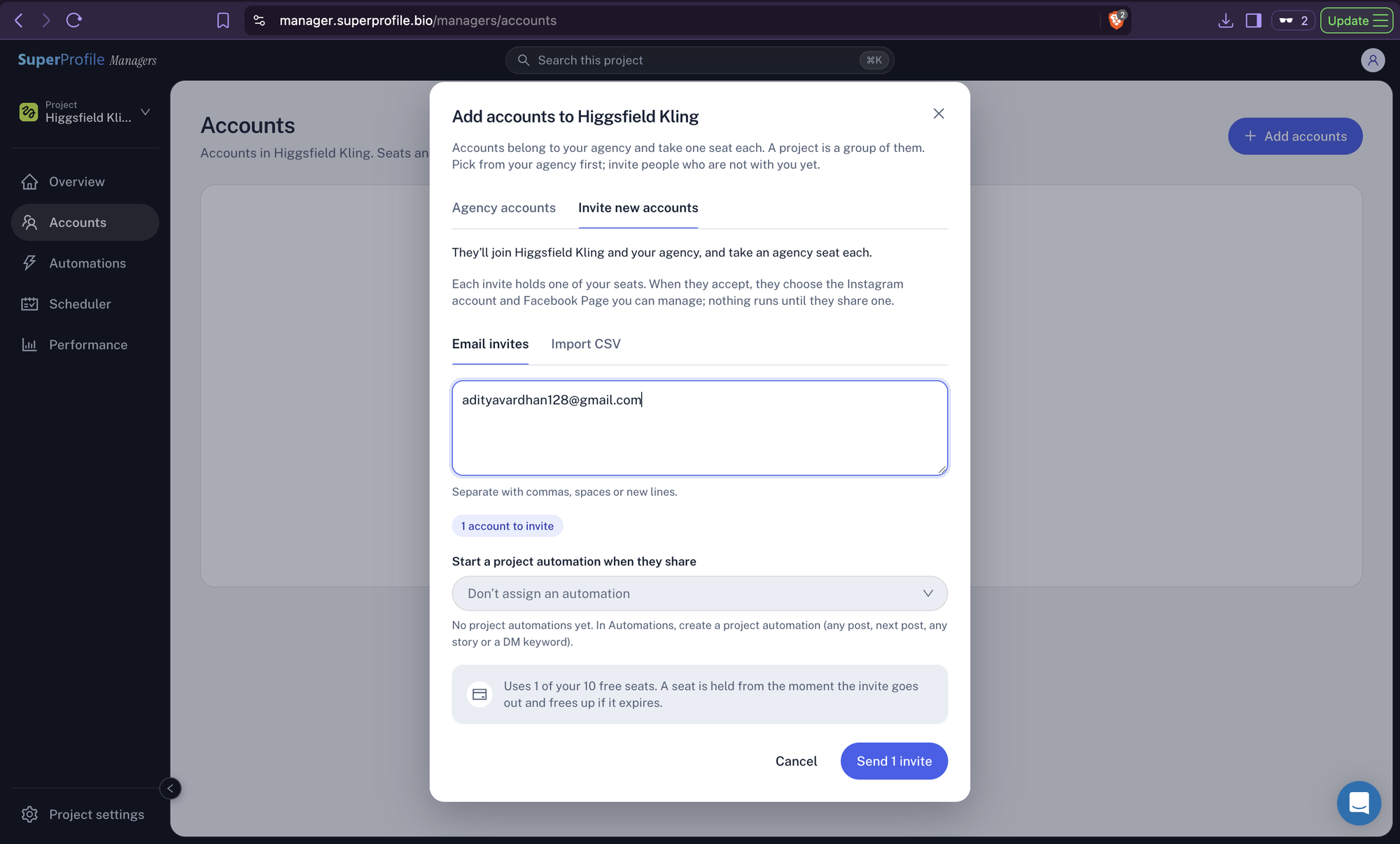
The Add accounts to [project] window opens.
- Click the Invite new accounts tab.
> Already working with the creator on another campaign? Use the Agency accounts tab instead. They join this project straight away, with no invite and no extra seat.
- Under Email invites, type or paste your creators' emails, separated by commas, spaces or new lines. A count such as "1 account to invite" shows how many will be sent.
Inviting a large group? Use the Import CSV tab. You can invite up to 500 creators at a time.
- Optional: under Start a project automation when they share, pick an automation, for example a comment-to-DM flow for the campaign's posts. It starts on each creator's account as soon as they accept and share it. Leave it on Don't assign an automation if you don't need one yet.
To have automations to choose from here, first create a project automation under Automations.
- Check the seat note at the bottom, for example "Uses 1 of your 10 free seats". Each invite holds one seat from the moment it's sent. If the invite expires, the seat is freed.
- Click Send 1 invite. The button shows how many invites will go out.
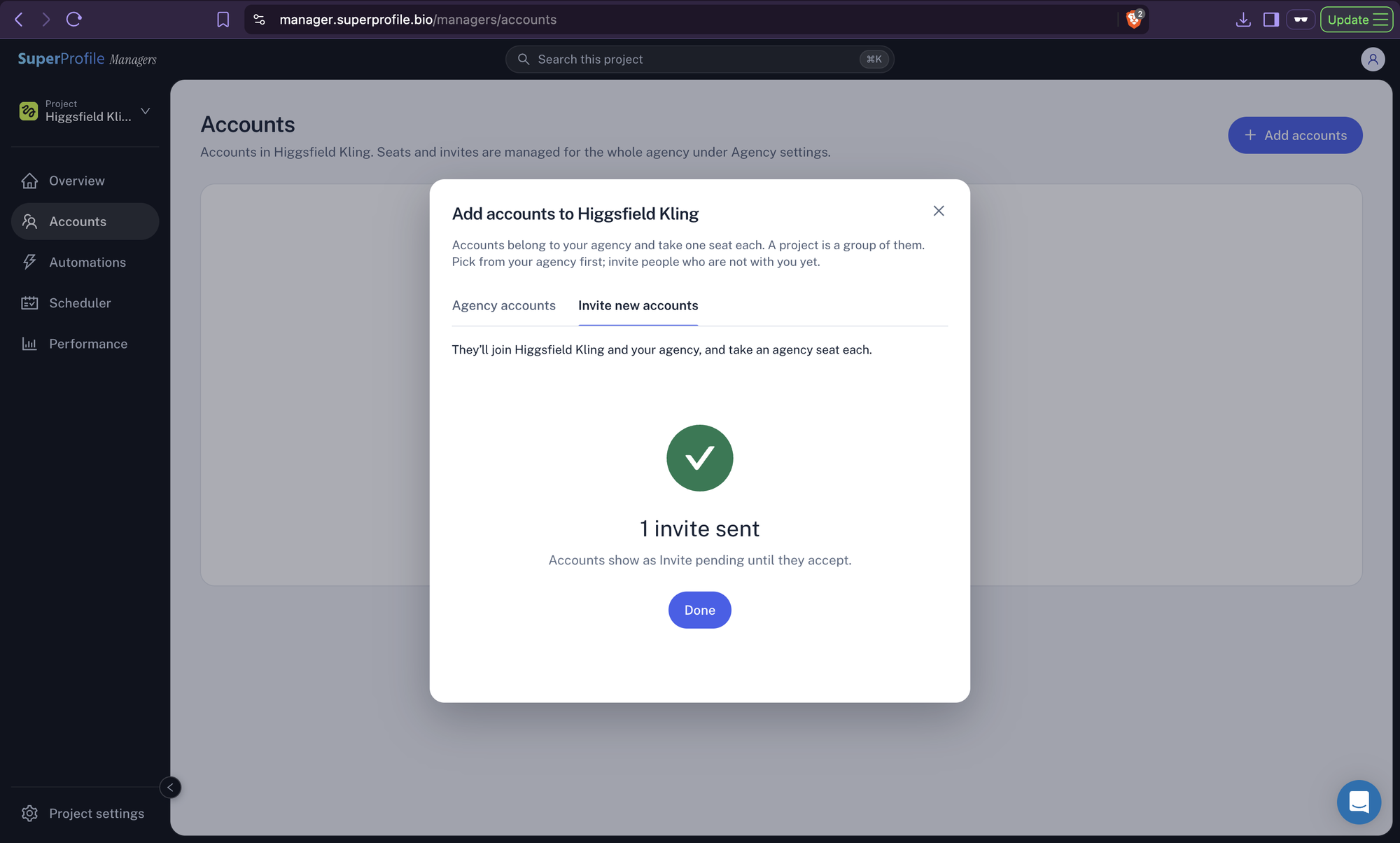
You'll see "1 invite sent", or however many you sent. Click Done.
Each creator gets an email with a secure link to accept. If an email you entered already belongs to a creator in your agency, they're added to the project directly. If they're already in this project, they're skipped.
Step 4: Track who has accepted
Invited creators appear on the Accounts page with the status Invite pending until they accept. Use the Invite pending tab to see only them. The Accounts running card shows how many have joined, for example 0 / 1 with 1 invite pending.
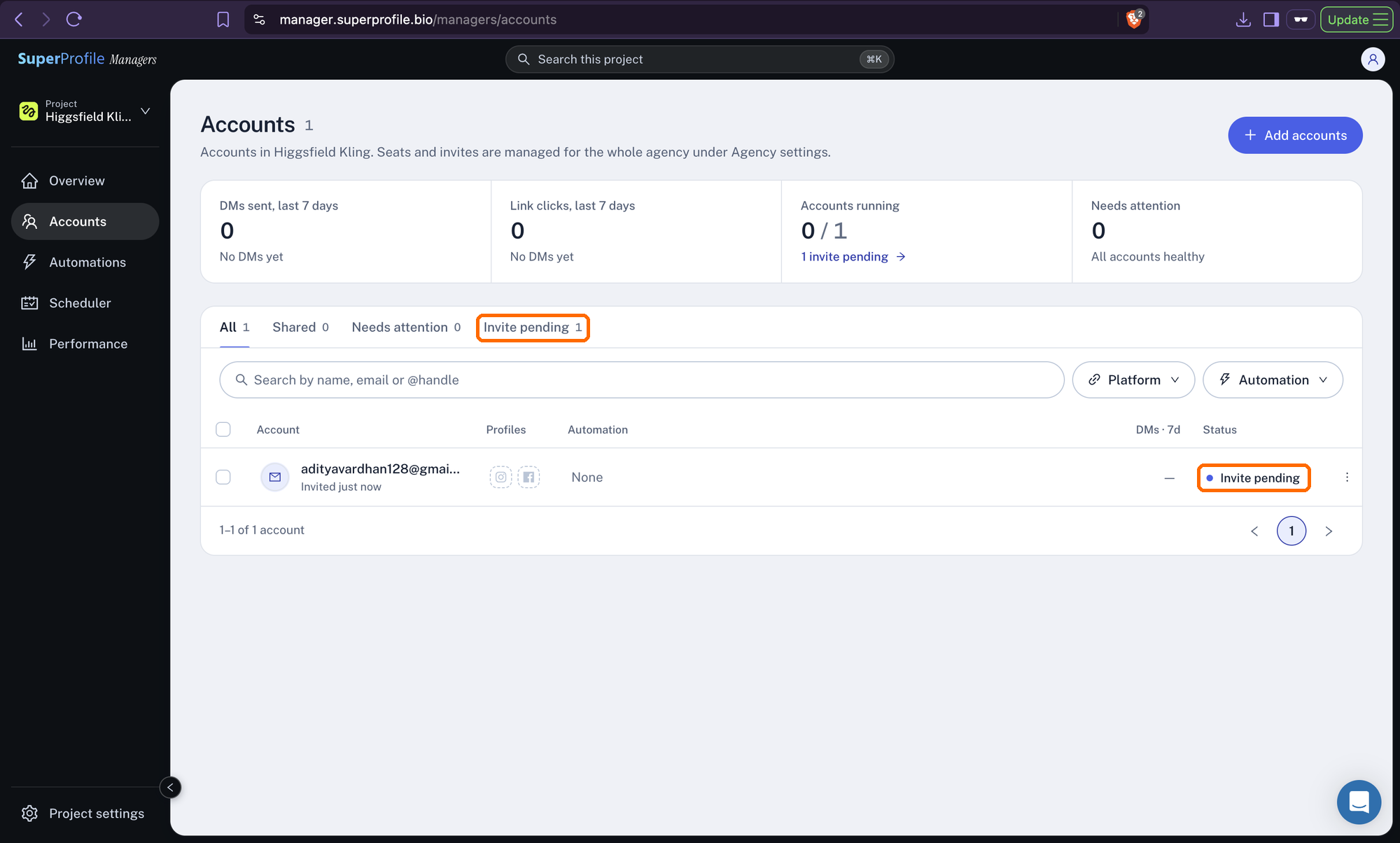
When a creator accepts and shares their account, their status changes. Their Instagram and Facebook icons fill in under Profiles, and any project automation you assigned starts on their account.
What your creators will do
To accept, each creator:
- opens the invitation email and clicks Authorise,
- verifies their email with a 6-digit code,
- clicks Allow access, and
- chooses which one Instagram account and one Facebook Page to share with you.
Nothing runs on a creator's account until they share an account with you. Your agency covers their seat, so they get the Creator plan at no cost while you manage them.
Share the creator guide with them: How to accept an invitation to an influencer marketing or UGC campaign.
Good to know
- Invitations expire after 7 days. If a creator hasn't accepted, resend the invite from the ⋮ menu on their row. Each invite can be resent once an hour.
- You only see what the creator shares. You can work only on the Instagram account and Facebook Page they choose. You can't access their billing, payouts, password or private details.
- Creators stay in control. They can switch or stop sharing an account, or remove your agency, at any time from their own settings.
- Removing a creator's seat: their account goes back to SuperProfile's free Starter plan. Nothing they made is deleted.
Troubleshooting
| Message | What it means | What to do |
|---|---|---|
| "Add N seats to send these invites" | You don't have enough free seats | Add seats in Agency settings, then send again |
| "Billing needs attention before you can invite" | Your agency's billing needs fixing | Update billing in Agency settings first |
| An email you entered wasn't sent an invite | That creator is already in this project or already invited to it | Check the Invite pending tab; resend from the ⋮ menu if needed |
| Creator says the link doesn't work | The invite expired or was already used | Resend the invite |
| Creator stays on Invite pending | They haven't accepted yet | Ask them to check Updates, Promotions and Spam for an email from SuperProfile |